The Account Manager
Keeping several Roblox accounts in Volt, launching them into a place or private server, and the performance overlay.
The Account Manager keeps your Roblox accounts and launches the Player signed in as one of them, straight into a game. Open it from the activity bar, or with Account Manager: Open in the command palette. The arrow at its top left goes back to the editor.
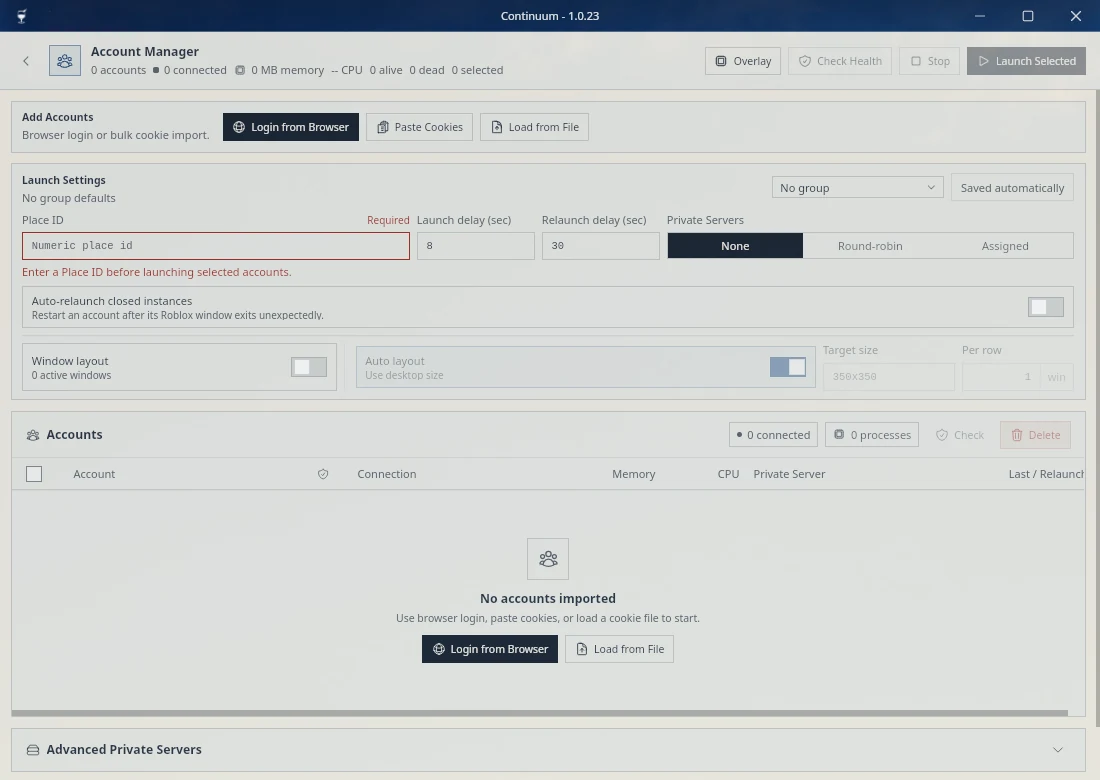
The header counts your accounts, how many are connected, and their memory and CPU use.
Adding accounts
Under Add Accounts:
- Login from Browser opens Roblox's own sign-in page in a private window. Sign in there as usual, two-step verification included; once Roblox accepts it, the account is added and the window closes. Cancel stops waiting.
- Paste Cookies takes
.ROBLOSECURITYcookies, one per line. The count of queued cookies shows as you paste; press Import. - Load from File imports the cookies from a
.txt,.csv,.log,.cookieor.cookiesfile, one per line.
Each account is named from Roblox as it is added.
Accounts you added in a Windows build of Volt appear in the list, but their cookies stay in Windows' credential store; import them again here.
Launch Settings
These apply to the next launch and save by themselves ("Saved automatically").
| Setting | What it does |
|---|---|
| Group selector | Keeps a set of launch settings per group of accounts; No group is the default set |
| Place ID | The game to join, by its number from the game's URL. Required |
| Launch delay (sec) | The wait between accounts when launching several at once |
| Relaunch delay (sec) | The wait before an account is restarted |
| Private Servers | None joins a public server. Round-robin spreads launches over your private servers in turn. Assigned sends each account to the server set on its row |
| Auto-relaunch closed instances | Restarts an account whose Roblox window closed unexpectedly |
The accounts table
Tick accounts to select them; the header box selects all. For the selection:
- Set group assigns them to a group;
- Check tests whether their cookies still work: Cookie alive, Cookie dead or unknown;
- Delete removes them.
Each row shows the account's name, group, cookie health, connection (Idle, Connecting, Connected, or a relaunch countdown), memory, CPU and private server. Relaunch immediately restarts it now.
To play, select an account and press Launch Selected at the top. It reads Enter Place ID until a place is set. Stop closes the selected accounts' Roblox clients, and Check Health checks every cookie at once.
Window layout
Turn on Window layout, under the launch settings, to tile the Roblox windows of the accounts you launch in a grid, each the Target size (such as 640x480), from the top left of your desktop. Auto layout fits as many windows across as your desktop allows; turn it off to set how many go Per row. Each account keeps its place in the grid by its position in the accounts table, and a window is placed as soon as it opens. Windows that do not fit below the last row start again at the top.
Roblox's own minimum window size is 800×600; turn on Unlock Window Size to tile smaller windows.
Private servers
Advanced Private Servers holds your server pool. Add Server adds one with a Name, a Place ID and its Private link or code: a share link, a private server link or its access code. The checkbox includes it in the round-robin pool.
Recent Activity
What the Account Manager did and when: imports, launches, relaunches, stops and failures.
The performance overlay
Overlay opens a compact panel that stays above your games, showing how many accounts are online, their processes, memory and CPU, and how many are alive, dead, starting or relaunching. Choose its corner from the location menu; the × closes it. Volt's other windows hide while it is open.
On Wayland the overlay needs your compositor's layer-shell support (gtk-layer-shell); KDE Plasma, Sway, Hyprland and most others have it, GNOME does not. Without it Volt says so instead of opening it.
Per-account HWID seeds
With Per-Account HWID Seed on, each account launched from here gets its own HWID seed, derived from your main seed, so its hardware IDs stay the same between launches and differ from your other accounts'.