Setting up Roblox
The Getting started steps on Home, from the Continuum build to a connected client.
Home walks you through everything Roblox needs, in order. It opens when Volt starts (change that with Startup Editor), and the house icon in the activity bar or Ctrl+Shift+H brings it back.
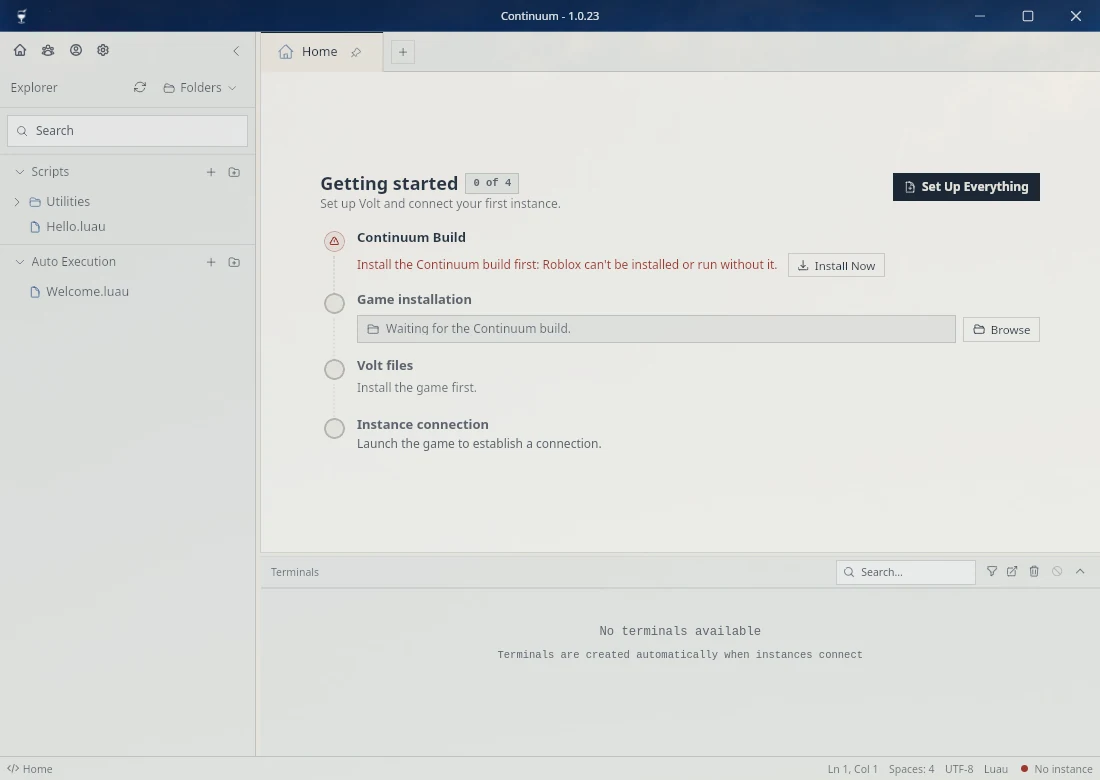
The counter beside Getting started shows how many of the four steps are done. Each step has a marker: empty while it waits, a spinner while it works, a tick when it is done, and a warning sign when it needs you.
Set Up Everything
On a fresh install, the main button at the top right reads Set Up Everything. Press it and Volt works through the first three steps for you, in order: the Continuum build, then the Roblox Player, then the Volt files. While it runs the button reads Setting Up…, and each step shows its own progress. When all three are done, a toast says "Everything is installed. Press Launch to play." and the button becomes Launch.
If a step cannot finish, for example because the download server cannot be reached or your subscription has run out, the run stops at that step and the step says why. Fix that and press Set Up Everything again; finished steps are skipped. You can also press each step's own button instead.
1. Continuum Build
The Wine build Roblox runs on, about 350 MB. Roblox can't be installed or run without it, so until it is in place this step shows a warning and the Game installation step reads "Waiting for the Continuum build."
- Install Now downloads and installs it, with the progress in the step.
- Once installed, the step shows its version. When a newer one is out, Update to version installs it. Volt will not switch builds while something is still running in the prefix; close Roblox first.
- If you set your own Proton in
config.toml(see Using a different Proton), the step says so and is done.
If Volt cannot reach the Continuum download server, an installed build stays usable; only a missing one stops the setup.
2. Game installation
The Roblox Player, in the prefix at drive_c/Roblox/Player.
- Install installs the Roblox version Volt supports, the newest one Volt has been updated for, and keeps the Player on that version so Roblox's own updates do not run ahead of Volt. Progress shows in the step, and Cancel stops it between packages, leaving the previous Player as it was.
- When Volt supports a newer Roblox than the one installed, Upgrade installs it.
- Once installed, the step shows the Player's path.
On Linux the Roblox folder is always the prefix's; there is no folder to choose.
3. Volt files
The files Volt places in the Player: Emulator.dll, Executor.dll and volt.bin, shown as chips with their versions.
- Install Now downloads them. They need an active subscription; if your login has a problem, the button becomes Account, which opens your account page.
- Uninstall removes them from the Player, leaving Roblox itself in place.
4. Instance connection
Done as soon as a Roblox client connects to Volt: "1 instance(s) connected". Until then it reads "Launch the game to establish a connection."
Launching Roblox
When the first three steps are done, the main button at the top right becomes Launch. It starts the Roblox Player through Continuum's Proton, with the graphics, environment and other options from Settings › Continuum. The client connects to Volt by itself once it is in a game.
You can also join from the browser: with Roblox Links on, a game page's Play button opens in Volt and starts the Player straight into that game.
The main button changes with the state of the setup:
| Button | When |
|---|---|
| Set Up Everything | The Continuum build, Roblox or the Volt files are not installed yet |
| Setting Up… | Set Up Everything is working through the steps |
| Launch | Everything is ready |
Each Launch starts another client beside the ones already running; see Several clients. The Roblox Player entry in your application menu and links from the browser start it the same way; see The Roblox Player.
Check for Updates
Beside Launch, Check for Updates checks everything at once:
- the Continuum build: a toast names the new version, and the step offers Update to version;
- Volt itself: the update button appears in the activity bar (see Updates);
- Roblox: when Volt supports a newer version, the Newer Game Version Available dialog offers to install it;
- the Volt files: newer ones are installed, or "All Volt files are already up to date."
Auto-Update Volt Files runs the Volt files part of this check every time Volt starts.