"Settings: Editor and Appearance"
Every setting under Editor and Appearance, from the font to the theme and zoom.
Open Settings with the gear in the activity bar, Ctrl+,, or Preferences: Open Settings in the command palette. The categories are on the left: Editor, Appearance, Client, Workbench and Continuum. Search settings, above them, finds a setting by name or description in every category but Continuum. Reset Settings, at the bottom, puts every setting back to its default.
Settings apply as you change them; there is nothing to save.
Editor
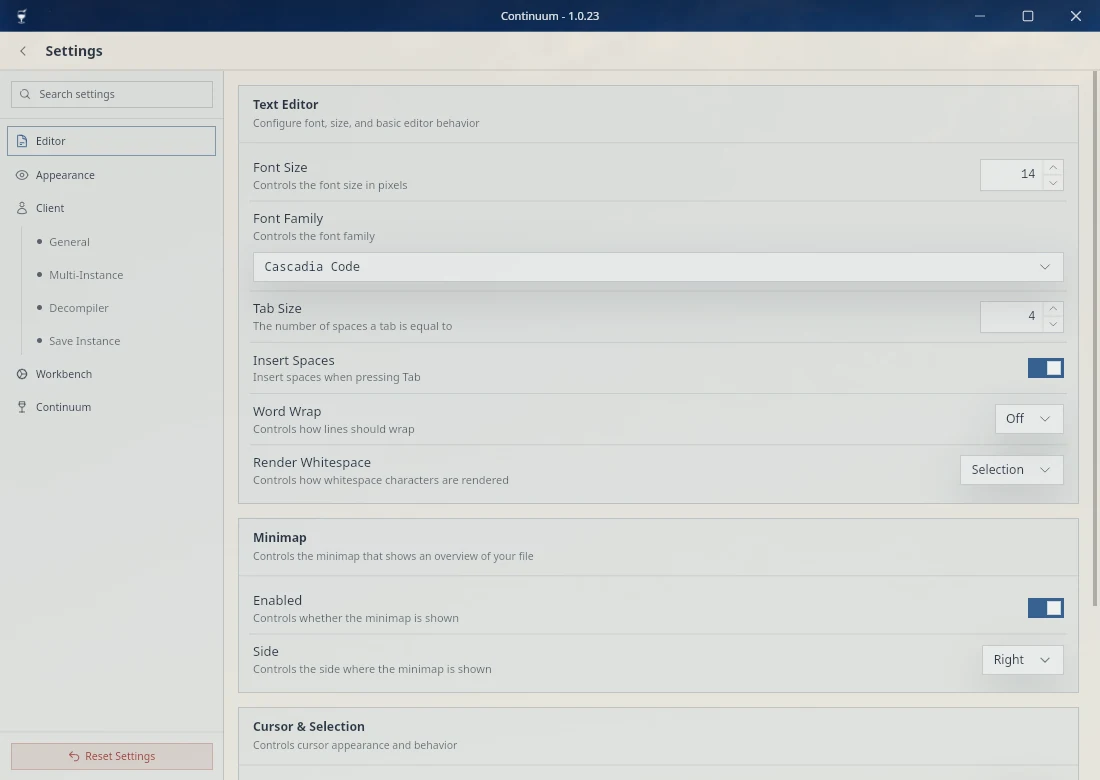
Text Editor
| Setting | What it does | Default |
|---|---|---|
| Font Size | The editor's text size in pixels, 8 to 40 | 14 |
| Font Family | The editor's font, from the fonts installed on your system | Cascadia Code |
| Tab Size | How many spaces a tab is, 1 to 8 | 4 |
| Insert Spaces | Tab types spaces instead of a tab character | On |
| Word Wrap | Off, On (at the window's edge), Word Wrap Column or Bounded | Off |
| Render Whitespace | Which spaces and tabs are drawn as dots and arrows: None, Boundary, Selection, Trailing or All | Selection |
Minimap
The overview of the file at the editor's side. Enabled shows it; Side puts it on the Left or Right.
Cursor & Selection
| Setting | Choices |
|---|---|
| Cursor Style | Line, Block, Underline, Line Thin, Block Outline, Underline Thin |
| Cursor Blinking | Blink, Smooth, Phase, Expand, Solid |
| Match Brackets | Highlight the bracket matching the one at the cursor: Never, Near or Always |
| Bracket Pair Colorization | Colour each level of nested brackets differently |
Appearance
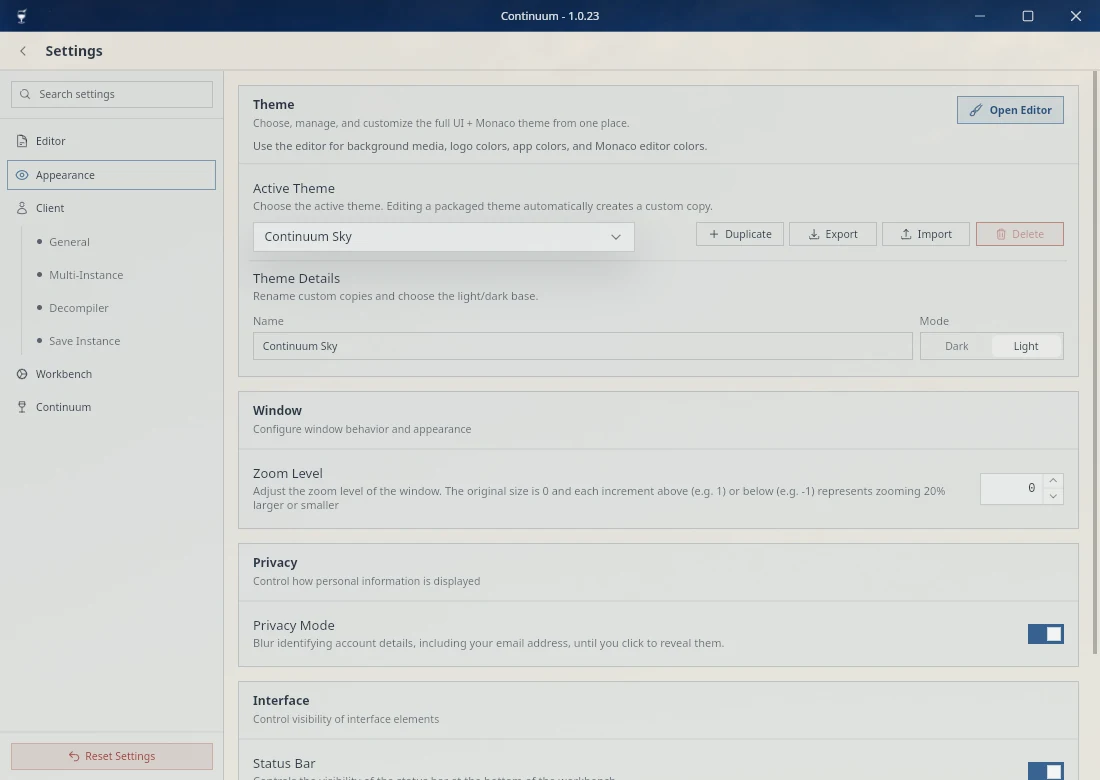
Theme
Active Theme chooses the look of the whole window and the editor. Continuum's themes come first in the list, Volt's own after them; Themes describes them all.
- Duplicate makes an editable copy of the active theme.
- Export saves the active theme as a file, to keep or share.
- Import loads a theme file and makes it active.
- Delete removes a custom theme and switches back to the default. Built-in themes cannot be deleted.
Theme Details renames a custom theme (Name) and sets whether it counts as Dark or Light (Mode). Changing either on a built-in theme makes a custom copy first, called "My" and the theme's name.
Open Editor opens the theme editor, where every colour, shape and image of a theme can be changed. See Themes.
Window
Zoom Level makes everything in Volt's window larger or smaller: 0 is normal size, and each step up or down is 20% larger or smaller, from -5 to 5. Useful on high-resolution screens where Volt looks small.
Privacy
Privacy Mode, on by default, blurs your email and other identifying account details until you click them.
Interface
| Setting | What it does |
|---|---|
| Status Bar | Shows the status bar along the bottom |
| Activity Bar Position | Puts the activity bar icons on the Left or Right |
| Always on Top | Keeps Volt's window above all others, including Roblox |