Scripts and the editor
The Explorer, tabs, running scripts, auto-execution, the command palette and shortcuts.
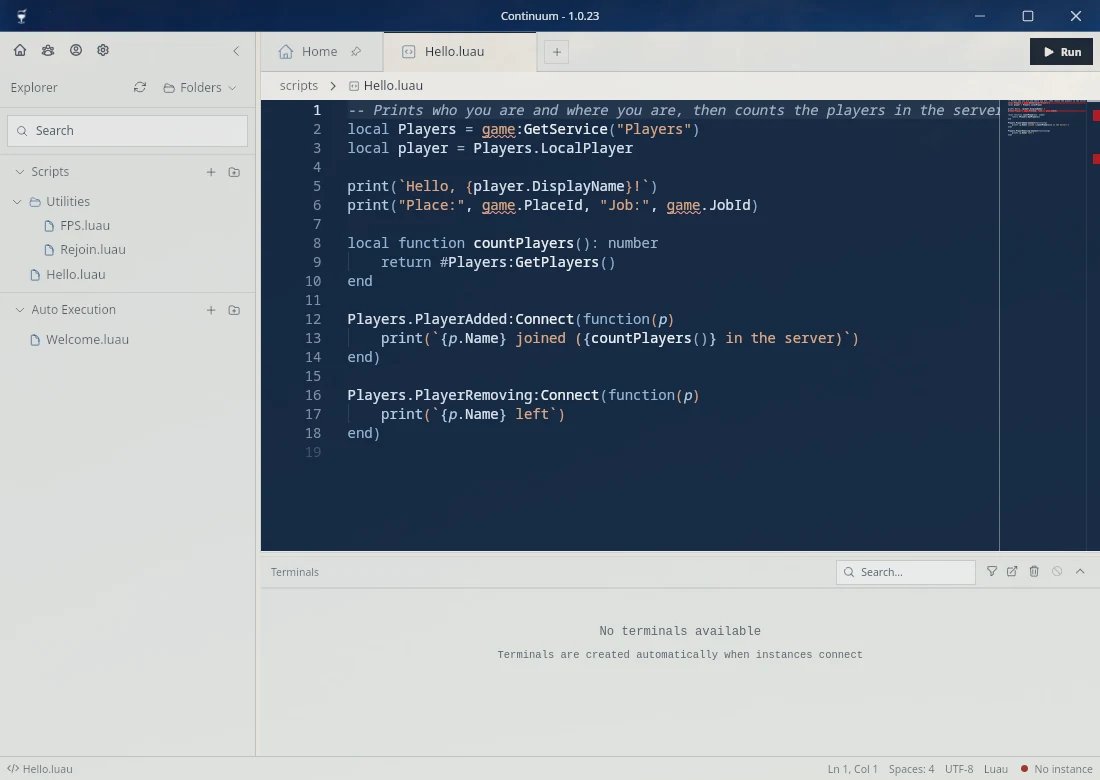
The Explorer
The sidebar lists two folders from Volt's folder in the prefix:
- Scripts: your own scripts, to open and run when you want.
- Auto Execution: scripts every Roblox client runs by itself as soon as it connects to Volt.
Search, at the top, filters both by name. The refresh button reloads them from disk, for files you changed outside Volt. Folders opens the Scripts, Auto Execution or Workspace folder in your file manager; the workspace is where scripts' own files go when they write some.
Files and folders
- + beside a section creates a file. Type its name and press Enter; a name without an extension gets
.luau. - The folder button beside it creates a folder.
- Click a file to select it, and double-click it (or press Enter) to open it; click a folder to expand it.
- Ctrl+click adds or removes a file from the selection, and Shift+click selects everything between.
- Drag files and folders onto a folder to move them.
- Drop
.txt,.luaor.luaufiles from your file manager onto the Explorer to copy them in. Other kinds are refused.
Right-click an item for its menu, which shows each action's key:
| Item | Key | What it does |
|---|---|---|
| Open | Enter | Opens the file |
| Open to the Side | Ctrl+Enter | Opens the file in a new editor group beside the current one |
| Execute | Shift+Enter | Runs the file on the selected instance without opening it |
| Enable / Disable | Auto Execution only: a disabled file or folder stays in place but is not run | |
| Reveal In File Explorer | Shows the file in your file manager | |
| Rename | F2 | Renames in place |
| Delete | Delete | Deletes after asking; it cannot be undone |
The keys work right after you click in the Explorer. Ctrl+A selects every file, the arrow keys move the selection (Shift extends it) and Esc clears it.
Several files at once
Right-click a file in a selection of several for what to do with them all:
| Item | What it does |
|---|---|
| Open | Opens each as a tab where you are |
| Open Side by Side | A new layout with one column per file |
| Open Stacked | A new layout with one row per file |
| Open in a Grid | A new layout with the files in a grid |
| Execute All | Runs each file on the selected instance |
The layouts replace the editor's current split; tabs that were already open go into the first pane, so nothing closes.
Tabs
The pinned Home tab is always first. Each open file has a tab, and + opens a new untitled one (Untitled 1, Untitled 2…). Closing an untitled tab with text in it asks before discarding it.
Right-click a tab, or use its menu button, for:
- Pin Tab / Unpin Tab and Rename;
- Close All Tabs (Ctrl+Shift+W), Close All Other Tabs (Ctrl+Alt+W) and Close Tabs to the Right (Ctrl+Alt+Shift+W);
- Instance: which client this tab runs on. Use Default follows the title bar's selection; or pick a group or a single instance for this tab only.
Drag a tab to the edge of the editor to split it: Split Left, Split Right, Split Up and Split Down each open a new editor group, and dropping on another group moves the tab there. Dropping files from your file manager onto the editor opens them; hold Shift while dropping to insert the file's text into the open tab instead.
Running scripts
Press Run, at the top right of the editor, to run the open tab. It goes to the tab's own instance if you chose one, otherwise to what the title bar's instance selector points at: one client, a group, or All. See Instances and terminals.
With nothing selected Volt says "No instance selected for execution". With no Roblox client connected, launch one from Home first.
Ctrl+S saves the open file. Untitled tabs are saved with File: Save As in the command palette.
Auto-execution
Every file in Auto Execution runs in each client as it connects, before you do anything. Disable a file (right-click › Disable) to keep it without running it; Execute is greyed out for a disabled file until you enable it again.
Code intelligence
The editor understands Luau: completion, hover documentation, signature help and error underlines come from the Luau language server, with Roblox's and Volt's own API definitions. Volt downloads the language server on first use and checks it before running it. Until Volt has installed its definitions, Roblox globals such as game are underlined as unknown, as in the picture above.
The command palette
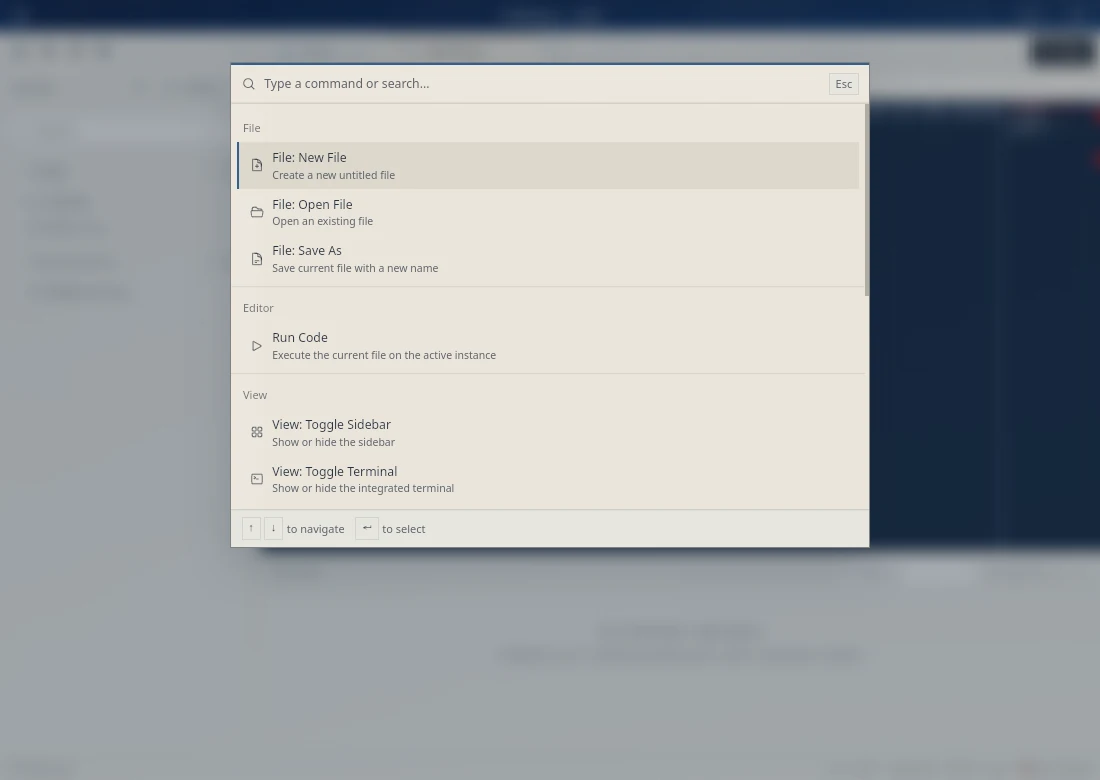
Ctrl+Shift+P opens the command palette. Type to filter, use the arrow keys and Enter to pick, Esc to close.
| Command | What it does |
|---|---|
| File: New File | A new untitled tab |
| File: Open File | Open a file from anywhere |
| File: Save As | Save the open tab under a new name |
| Run Code | Run the open tab, as Run does |
| View: Toggle Sidebar | Show or hide the Explorer |
| View: Toggle Terminal | Show or hide the terminal panel |
| View: Toggle Status Bar | Show or hide the status bar |
| Editor: Show Editor Command Palette | The code editor's own command palette, as F1 in the editor |
| Terminal: Clear Terminal | Clear the active terminal |
| Terminal: New Shell | Open a shell in the Terminals panel |
| Terminal: Close Shell, Clear Shell, Copy, Paste | The same for the shell showing, while one is open |
| Terminal: Next Shell, Previous Shell | Switch between the shells' tabs |
| Terminal: Detach Terminals | Move the Terminals panel into a window of its own |
| Preferences: Open Settings | Open Settings |
| Preferences: Open Editor Settings | Open one page of Settings: also Client, Workbench and Continuum |
| Preferences: Keyboard Shortcuts | Change the commands' shortcuts, in Settings › Workbench |
| Account: Open Account Settings | Open your account page |
| Account Manager: Open | Open the Account Manager |
| Navigation: Open Home | Open Home |
| Continuum: Wine Configuration, Registry Editor, ... | Run one of Wine's programs in the prefix, as Settings › Continuum does: also File Explorer, Task Manager, Control Panel, Command Prompt, Uninstall Programs and Notepad |
| Continuum: Run Executable… | Run an .exe, .msi or .bat in the prefix |
| Continuum: Winetricks | Install Windows components into the prefix |
| Continuum: Open Prefix Folder, Open Roblox Logs | Open the folder in your file manager |
| Continuum: Clear Download Cache | Remove the Roblox packages kept for reinstalling |
| Developer: Reload Window | Reload Volt's window |
Each command shows its shortcut, if it has one. The code editor has a command palette of its own, with the editor's commands: F1 opens it while you type in the editor, and Editor: Show Editor Command Palette from here. It lists Volt: Show Command Palette to come back.
With every tab closed, the editor area offers Show Command Palette and Show Home.
Keyboard shortcuts
Every command in the palette can have a shortcut; these are the defaults. Change them, or give other commands one, in Settings › Workbench › Keyboard Shortcuts.
| Shortcut | Action |
|---|---|
| Ctrl+Shift+P | Command palette |
| Ctrl+, | Settings |
| Ctrl+Shift+H | Home |
| Ctrl+N | New file |
| Ctrl+O | Open file |
| Ctrl+S | Save |
| Ctrl+Shift+S | Save as |
| F5 | Run code |
| Ctrl+B | Toggle the sidebar |
| Ctrl+` | Toggle the terminal panel |
| Ctrl+Shift+` | New shell |
| Ctrl+Shift+C, Ctrl+Shift+V | Copy and paste in a shell |
| Ctrl+PageDown, Ctrl+PageUp | Next and previous shell |
| Ctrl+Shift+F1 | The code editor's command palette |
| Ctrl+Shift+W | Close all tabs |
| Ctrl+Alt+W | Close all other tabs |
| Ctrl+Alt+Shift+W | Close tabs to the right |
The editor also has the usual editing keys: Ctrl+F to find, Ctrl+H to replace, Ctrl+/ to comment a line, Alt+Up and Alt+Down to move lines, and Ctrl+D to select the next match.