"Settings: Continuum"
How Volt runs Roblox on Linux, linking your account, Discord presence, effects, the Wine prefix, Continuum's add-ons and uninstalling.
The Continuum category holds everything about running Roblox on Linux. Its settings are saved in ~/.config/continuum-launcher/config.toml (see Configuration) and apply from the next launch. Text fields save when you leave them or press Enter.
Roblox Player
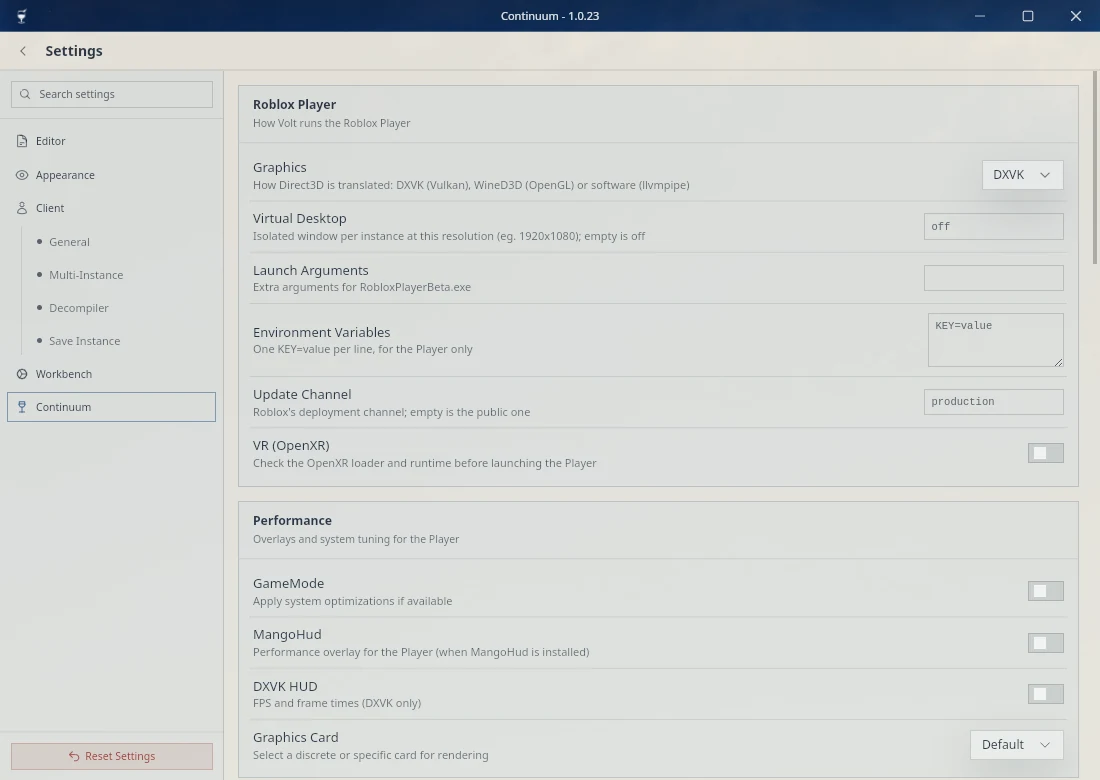
| Setting | What it does |
|---|---|
| Graphics | How Roblox's Direct3D is drawn: DXVK (Vulkan, the fastest), WineD3D (OpenGL, for GPUs without Vulkan) or Software (the CPU, as a last resort) |
| Virtual Desktop | A resolution such as 1920x1080 puts each Player in a window of its own at that size; empty is off |
| Launch Arguments | Extra arguments for RobloxPlayerBeta.exe |
| Environment Variables | One KEY=value per line, for the Player only |
| Update Channel | Roblox's deployment channel; empty is the public one |
| VR (OpenXR) | Checks your OpenXR loader and runtime before launching, for playing in VR. See VR |
See Graphics for choosing between the modes.
Link Account
Links this Volt to your azula.website account: Volt opens a page on azula.website showing a code, and you approve it there. Linking is for verified members of the Continuum Discord. Volt's Staging environment uses the link. See or revoke your linked computers at azula.website/link.
Remote Support
Remote support has ended. Volt builds that still show this section can't connect a session.
Verified Volter
Verified Volter has ended. azula.website no longer checks Volt subscriptions or gives the role, so Volt builds that still show this section can't claim it.
Performance
| Setting | What it does |
|---|---|
| GameMode | Runs Roblox under Feral GameMode, when installed, to tune the system while it runs |
| MangoHud | MangoHud's overlay of FPS, frame times and load, when installed |
| DXVK HUD | DXVK's own FPS and frame-time counter (DXVK only) |
| Graphics Card | Which GPU Roblox renders on, for laptops and machines with more than one; Default leaves it to the system |
Discord Rich Presence
Shows the game you are playing on your Discord profile; Discord's desktop app must be running. Turn on Enabled and the rest appears:
| Setting | What it does |
|---|---|
| Details | The first line. {game}, {creator} and {location} are filled in; the default is {game} |
| State | The second line; the default is by {creator} |
| Application ID | The Discord application the status shows under |
| Game Icon | The game's icon as the large picture |
| Account | Your Roblox avatar as the small picture, with your name on hover |
| Elapsed Time | How long you have been in the game |
| Game Page Button | A "See game page" button |
| Join Button | A "Join server" button for friends, on public servers only |
| Server Location | Looks the server's address up at ipinfo.io to fill in {location} |
| Game Status | Lets games set their own status, as they do for Bloxstrap |
| Menu Status | Shows "In the Roblox menu" between games |
Every placeholder and what each option shares is in Discord Rich Presence.
Effects
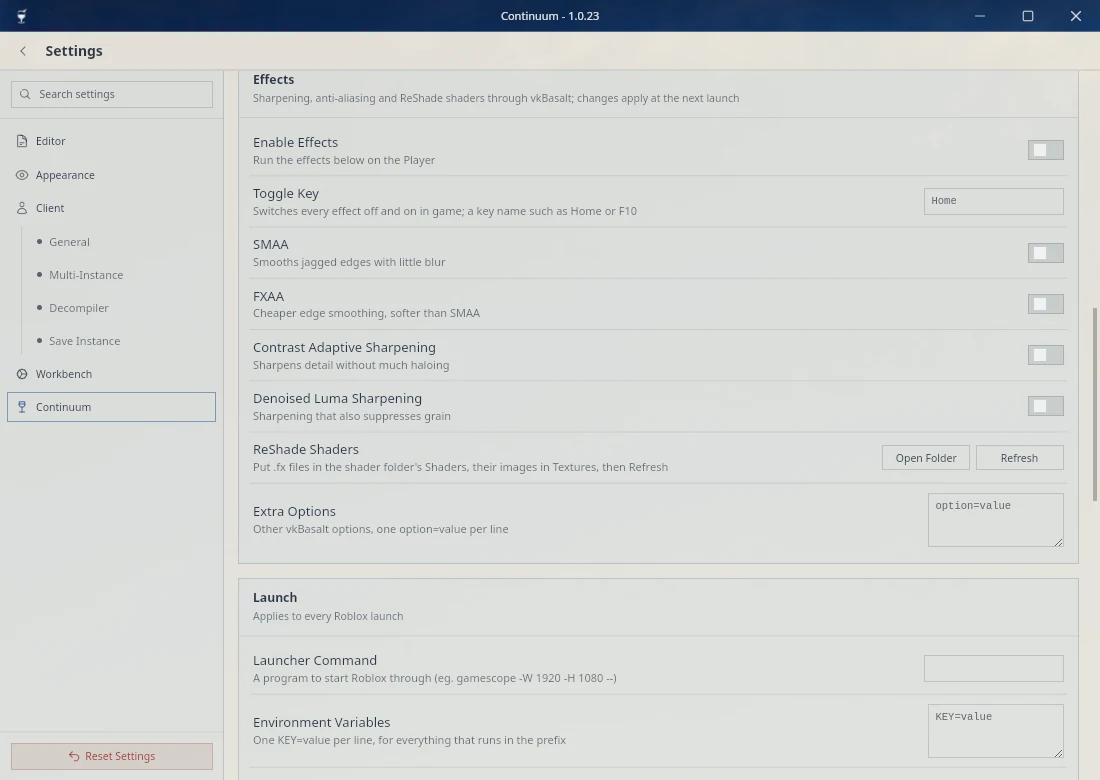
Sharpening, anti-aliasing and ReShade shaders through vkBasalt, on the DXVK graphics mode only. Changes apply at the next launch.
| Setting | What it does |
|---|---|
| Enable Effects | Runs the effects below on the Player. Greyed out until vkBasalt is installed |
| Toggle Key | Switches every effect off and on in game; a key name such as Home (the default) or F10 |
| SMAA, FXAA, Contrast Adaptive Sharpening, Denoised Luma Sharpening | The built-in effects. Each one's parameters appear below it once it is on |
| ReShade Shaders | Open Folder opens the shader folder; Refresh lists the .fx files in it, each with its own switch |
| Extra Options | Other vkBasalt options, one option=value per line |
Effects covers installing vkBasalt, the parameters and which shaders work.
Launch
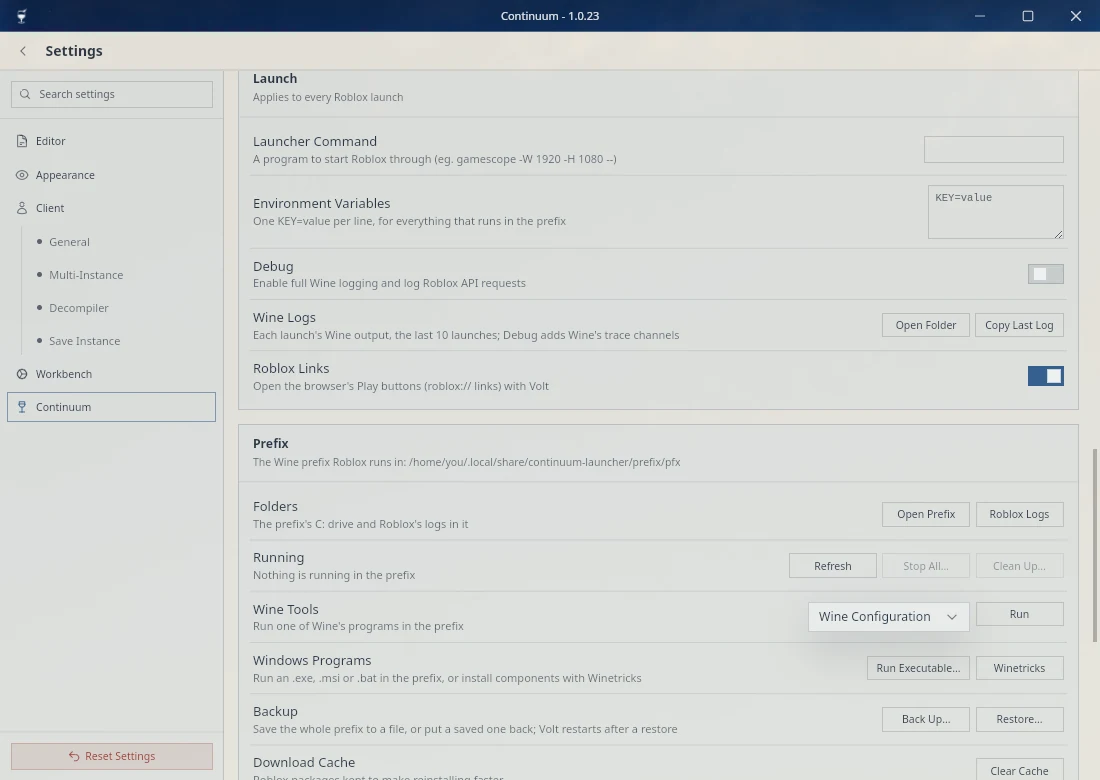
These apply to every Roblox launch.
| Setting | What it does |
|---|---|
| Launcher Command | A program to start Roblox through, such as gamescope -W 1920 -H 1080 -- |
| Environment Variables | One KEY=value per line, for everything that runs in the prefix: Roblox, the Wine Tools, Winetricks and programs you run |
| Debug | Full Wine logging and a log of Roblox's web requests, for reporting problems. Slows Roblox down; leave it off otherwise |
| Wine Logs | Each launch's Wine output, the last 10 launches. Open Folder shows them; Copy Last Log puts the newest one on the clipboard |
| Roblox Links | Makes the browser's Play buttons (roblox:// links) open in Volt, which starts the Player straight into that game |
| Account Blacklist | Roblox accounts Volt won't run. Add one by user ID or username (Volt looks the name up and keeps the ID, so a renamed account stays blocked), or pick one of your Account Manager accounts. Volt checks the account before Roblox starts: the Account Manager's own, the account Roblox is signed in to in the prefix for Launch on Home, and a browser Play link's, whose sign-in ticket Volt redeems and replaces with a fresh one. When it can't tell the account, it doesn't launch. Switching to a listed account inside Roblox afterwards is caught once Volt's client reports it, and Roblox is closed then, so keep listed accounts signed out of Roblox in the prefix. The Volt Daemon applies the same list while Volt is closed |
See Reading the logs and Joining from the browser.
Prefix
The Wine prefix Roblox runs in, with its path in the description.
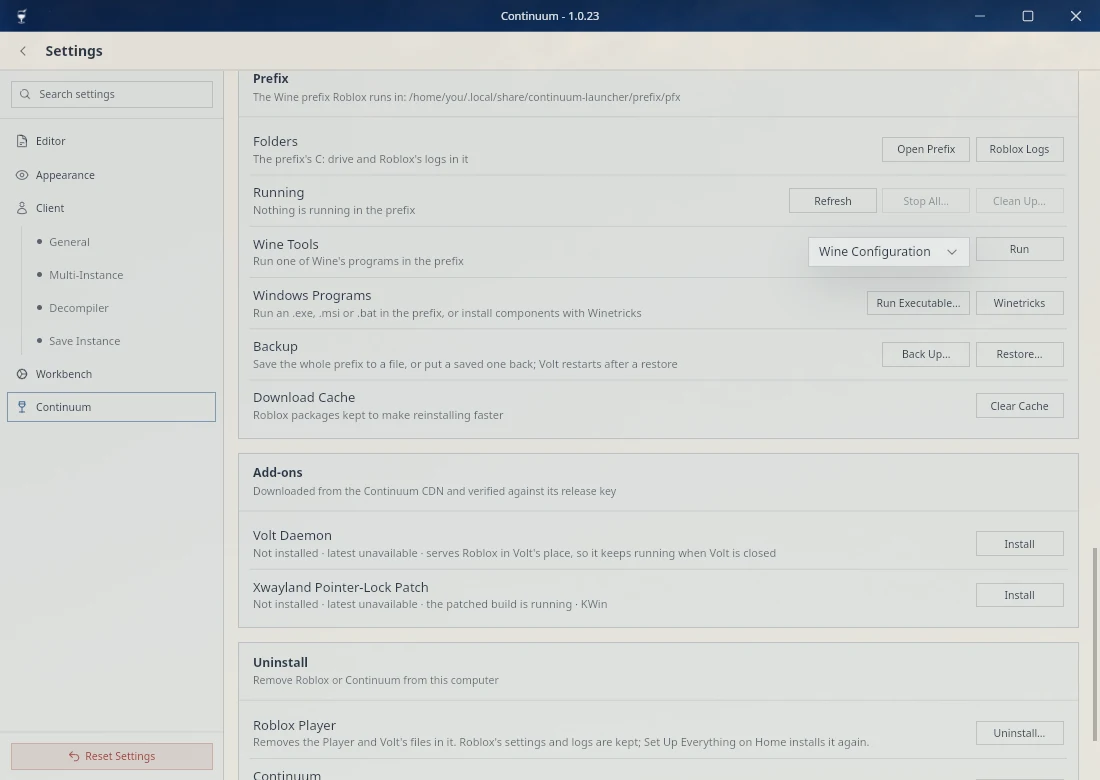
| Row | What it does |
|---|---|
| Folders | Open Prefix opens its C: drive; Roblox Logs opens Roblox's own logs |
| Running | Lists the Windows programs running in the prefix. Refresh updates it. Stop All… asks Wine to close everything in the prefix, Roblox included; Clean Up… forcibly ends every process of the Continuum session, for when something hangs and Stop All… does not help. Both ask first |
| Wine Tools | Runs one of Wine's programs in the prefix: Wine Configuration, Registry Editor, File Explorer, Task Manager, Control Panel, Command Prompt, Uninstall Programs or Notepad. Pick one and press Run |
| Windows Programs | Run Executable… runs an .exe, .msi or .bat in the prefix; Winetricks opens Winetricks against it |
| Backup | Back Up… saves the whole prefix to a file; Restore… puts a saved one back, after asking. Volt restarts after a restore |
| Download Cache | Clear Cache deletes the Roblox packages kept to make reinstalling faster |
See Windows programs and tools and Backups.
Add-ons
Optional parts of Continuum, downloaded from Continuum's server and checked against its release key before they are installed. Each row shows what is installed, what is available, and buttons to Install, Update to a newer version, or Uninstall.
Volt Daemon
A background service that serves Roblox clients in Volt's place, so they keep working when Volt's window is closed. While it runs, Volt shows its clients as its own; see What Volt for Linux is. Its log is ~/.cache/continuum-launcher/logs/voltd.log.
- Start / Stop run it now.
- Start at Login starts it whenever you log in. Don't Start at Login undoes it.
Volt sets Start at Login up with whatever manages your user's services:
| Your system | How it runs |
|---|---|
| systemd (most distributions) | A user service, restarted if it stops |
| dinit, OpenRC user services, s6 | A user service of that manager, restarted if it stops |
| runit with a per-user service folder | A runit service there, restarted if it stops |
| None of these | A login item: started at login, not restarted |
On Void and other runit systems without per-user services, turning on Start at Login then asks "Let runit look after the daemon?". Set Up makes the one-time system change, asking for your password; Show Commands shows the root commands it runs, with Copy Commands to run them yourself; Not Now leaves it as a login item.
Xwayland Pointer-Lock Patch
Fixes the mouse escaping the Roblox window in first person and when dragging the camera on Wayland desktops. The row names your compositor, and says "(needs root)" where the patch can only be installed as root, as on GNOME. Install then asks under the row: Install as Root asks for your password and installs it, Show Commands shows the commands with Copy Commands to run them yourself. The patch is used from the next time Xwayland starts, so log out and back in after installing it, and save your work in X11 programs first. Mouse lock on Wayland covers each desktop.
Voltux
Shown only when Volt finds Voltux, Continuum's predecessor, on this machine; the description says where.
- Import copies Voltux's Volt scripts, auto-execution files, workspace, themes and settings, Roblox's settings and the Player's FFlags into Continuum's prefix, keeping files Volt already has. Voltux's Roblox Player is not copied: Continuum installs its own.
- Remove… deletes what is left of Voltux: its prefix, programs, menu entries and PATH lines. Parts outside your home folder need root, and the row shows the command. Import first if you want its scripts.
Home offers the same import when Voltux is found; see Coming from an older setup.
Uninstall
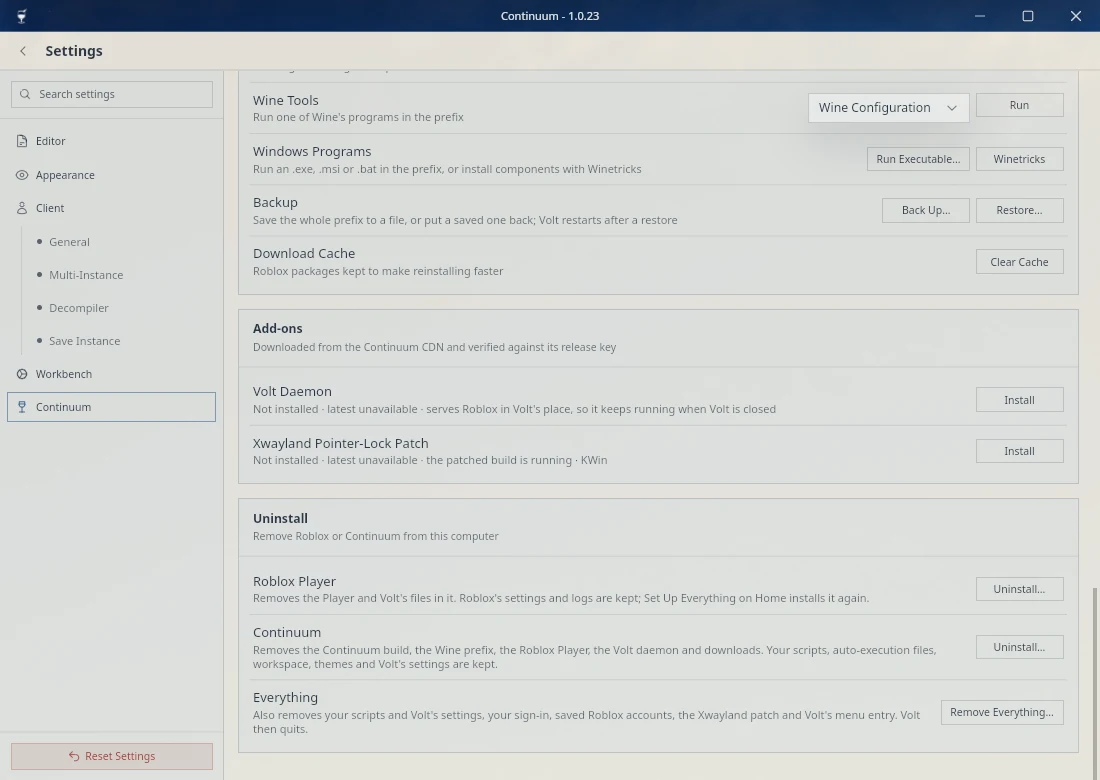
Removes Roblox or Continuum from this computer. Each asks first, cannot be undone, and refuses while something runs in the prefix.
| Row | What it removes |
|---|---|
| Roblox Player | The Player and Volt's files in it. Roblox's settings and logs are kept; Set Up Everything on Home installs it again |
| Continuum | The Continuum build, the Wine prefix, the Roblox Player, the Volt daemon and downloads. Your scripts, auto-execution files, workspace, themes and Volt's settings are kept |
| Everything | Also your scripts and Volt's settings, your sign-in, saved Roblox accounts, the Xwayland patch and Volt's menu entry. Volt then quits |
See Uninstalling.