Themes
The built-in themes, your own themes, and the theme editor.
A theme sets the look of the whole window: colours, fonts, shapes, the title bar, the editor's syntax colours, background images, and the screen shown while Volt starts. Choose one under Settings › Appearance › Active Theme.
Built-in themes
| Theme | What it is |
|---|---|
| Continuum Sky | Continuum's own, after the website's sky: cream paper under a blue sky. The default for new installs |
| Continuum Sky Dark | The same at dusk |
Volt's own themes come with it too: Volt Dark, Volt Dawn, Volt-Ware, Voltmillion, Sakura Drift, Catppuccin Mocha, Sirmeme, Windows 7 Aero and Windows XP Luna.
Themes from the catalogue
The theme catalogue that used to be on this site has ended. Themes you installed from it stay in Volt and keep working, images and all. To move one to another machine, use Export and Import (below).
Your own themes
Changing a built-in theme never changes the original: Volt makes a copy called "My" and the theme's name, and edits that. Duplicate makes a copy on purpose. Export and Import, in the same row, move themes between machines as files, and Delete removes your copies.
Themes are data: a theme can change how Volt looks, never run code. A theme can show images and fonts from other websites, though, and Volt fetches them the way a web page would, which lets those sites see your IP address. Themes installed from the former catalogue load theirs from Continuum's own servers. Themes made for the Windows Volt import as they are.
The theme editor
Settings › Appearance › Open Editor opens the theme editor in a window of its own. Changes show in Volt's window as you make them, and save into your copy of the theme.
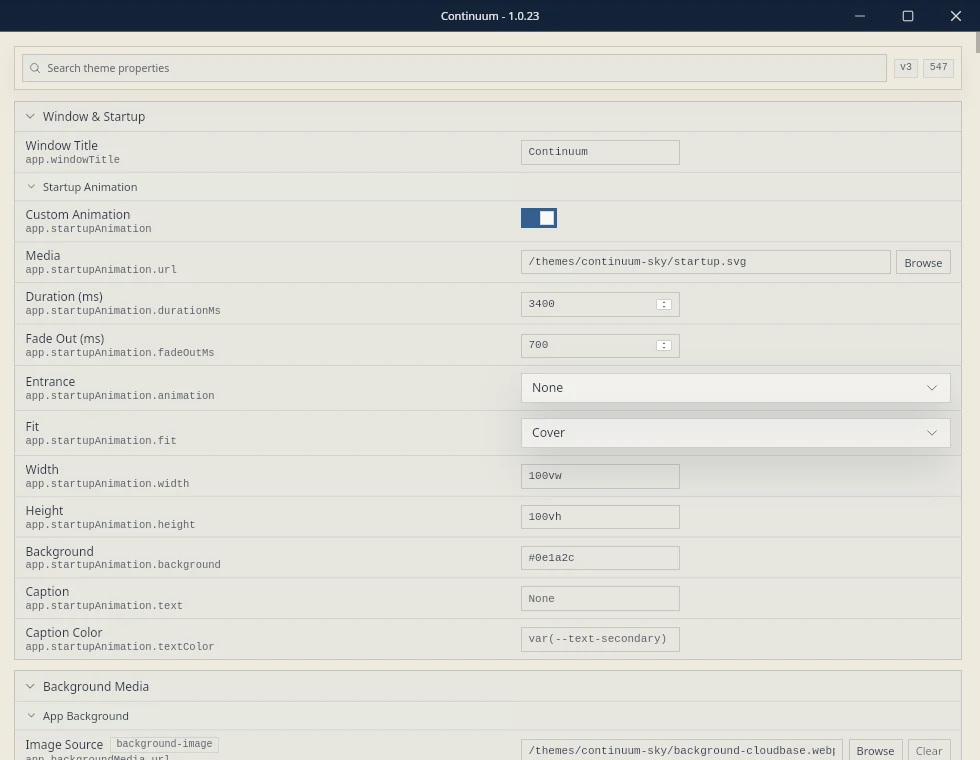
Search theme properties, at the top, finds any property by name. The sections, from the top:
- Window & Startup, Continuum's addition:
- Window Title, shown in the title bar and taskbar before Volt's version;
- Startup Animation: turn on Custom Animation to replace the startup screen with an image, animated SVG or video (Media, with Browse), and set its Duration, Fade Out, Entrance (Fade, Rise, Pulse, Drift or None), Fit, size, Background and a Caption.
- Terminal, Continuum's addition: the colours of the shells and of the Roblox clients' terminals. Off, every theme gets a palette made from its own colours (its error, success, warning, info and accent colours, adjusted to stay readable on its terminal background), so light themes get colours dark enough for white. Turn on Custom Colors to start from that palette and change any of it:
- Shells: Background, Foreground, Cursor, Selection, and the 16 colours programs use (Black to White and their Bright versions);
- Roblox Terminals: Background, Text, Timestamps and Muted Text, Info, Success, Warning, Error and Status.
- Background Media: an image behind the whole window (App Background) and one behind the editor (Monaco Background), each with its opacity, blur, size, position and repeat.
- Style: broad switches for the overall feel: Density, Radius, Border Style, Material and Animation.
- Color, Shape, Elevation, Spacing, Sizing, Typography, Motion, Materials and Opacity: the theme's basic values, used everywhere.
- Components: each part of the window on its own, from buttons and toggles to the title bar, tabs, terminal and status bar.
- Monaco Theme, Monaco Syntax and Monaco Colors: the editor's base theme, its syntax colours for Luau, and the rest of its colours.