What Volt for Linux is
The native Volt window, what it replaces, and a tour of its parts.
Volt for Linux is Volt's own editor running natively on Linux, with no Wine and no WebView2 in between. The window, the editor and every page in it are Volt's; Continuum adds a Continuum settings page, a setup step for the Continuum build, a set of themes, and the plumbing that starts Roblox through Continuum's Proton.
It does everything the Windows Volt does for the in-game executor: it is the server Roblox clients connect to, it runs your scripts on them, and it shows their output. It also installs the Continuum build and the Roblox Player, keeps them up to date and starts Roblox, so Volt for Linux is all you need to use Continuum.
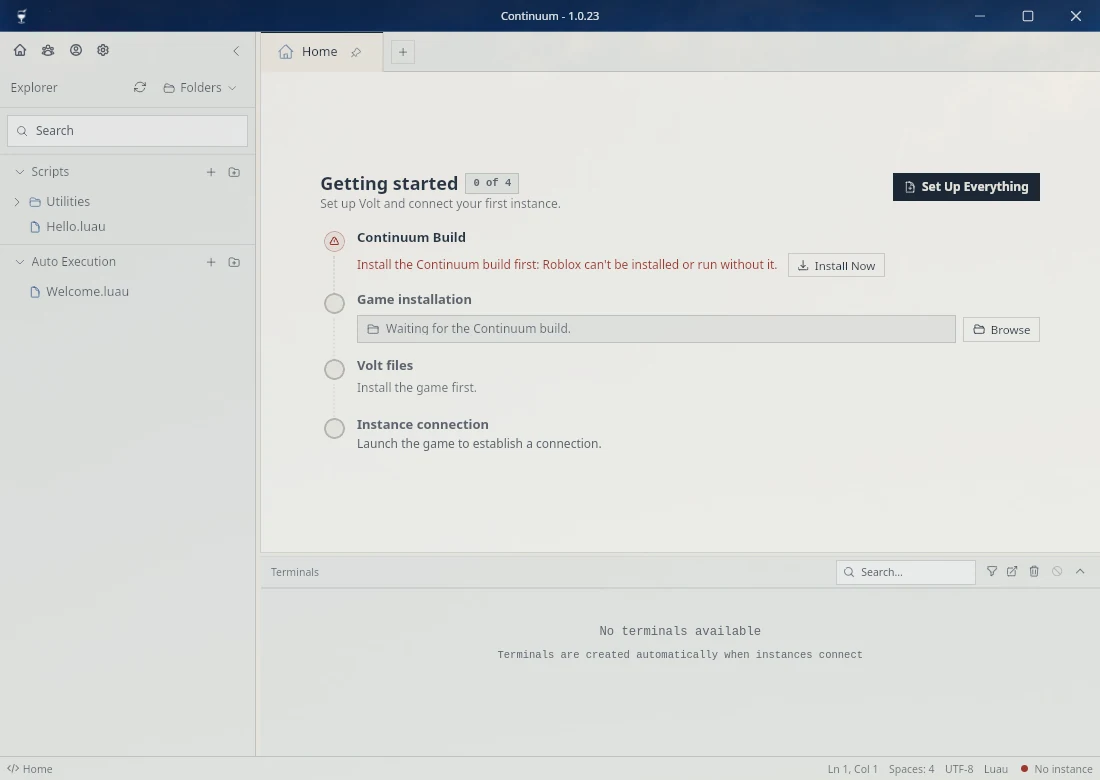
Getting it
Volt for Linux comes as an AppImage, a Flatpak and a plain executable, on the download section. Once you have one, it updates itself (see Updates). Installing Volt walks through each form, and the WebKitGTK package the plain executable needs.
On its first start Volt adds itself to your application menu, with its icon, from wherever you ran it, so keep the file somewhere permanent first. Once Roblox is installed, a Roblox Player entry joins it; see The Roblox Player.
Volt, the Volt daemon and older setups
- The Volt daemon. When the Volt daemon runs, Volt hands the clients over to it and shows them as if they were its own: their output, Run, Terminate, the login and the settings all go through the daemon. Closing Volt then leaves your Roblox clients connected to the daemon.
- The Continuum launcher. Volt for Linux replaces it, and reads the same settings file and the same Wine prefix, so an existing setup carries over as it is.
- The Windows Volt. Volt for Linux shares Volt's folder in the prefix with the Windows build: your scripts, auto-execution files, workspace and settings carry over. Only one can be the server the Roblox clients connect to; if a Windows Volt is still running in the prefix, Volt for Linux waits until it closes.
A tour of the window
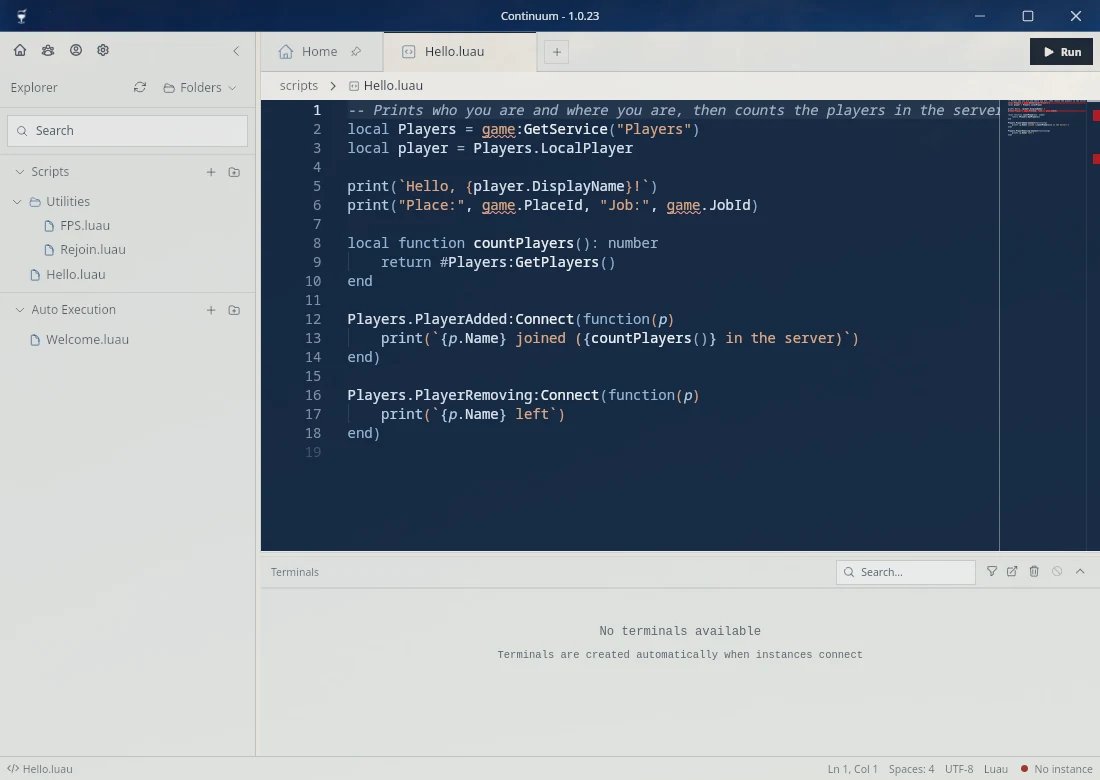
- Title bar. The title shows the theme's name for Volt and the version. Once a Roblox client is connected, the instance selector appears on its right: it chooses which client, or group of clients, Run sends scripts to. See Instances and terminals.
- Activity bar, the column of icons at the top of the sidebar: Home, Account Manager, Account and Settings. When a newer Volt is out, an update button joins them.
- Explorer, the sidebar: your Scripts and Auto Execution files. See Scripts and the editor.
- Tabs and the editor, in the middle. The pinned Home tab is always there.
- Terminals, the panel below the editor: one tab per connected Roblox client with its output.
- Status bar, along the bottom: the open file, cursor position, indentation, encoding, language and how many clients are connected.
The sidebar collapses with the arrow at its top right, and both the sidebar and the terminal panel resize by dragging their edges. Double-click an edge, or click it with the middle mouse button, to put it back to its default size.
Where things are kept
| What | Where |
|---|---|
| Scripts, auto-execution files, workspace, Volt's settings | Volt's folder in the prefix: ~/.local/share/continuum-launcher/prefix/pfx/drive_c/users/steamuser/AppData/Local/Volt |
| Your Volt login | ~/.config/volt-linux/auth.json, readable only by you |
| Roblox account cookies (Account Manager) | ~/.config/volt-linux/roblox-cookies.json, readable only by you |
| Continuum settings | ~/.config/continuum-launcher/config.toml |
| The Roblox Player | drive_c/Roblox/Player in the prefix |
| Each launch's Wine output | ~/.local/share/continuum-launcher/prefix/logs, the last 10 launches |
Folders at the top of the Explorer opens the Scripts, Auto Execution and Workspace folders in your file manager.