"Settings: Workbench"
What Volt does when it starts, its windows, and the terminal panel.
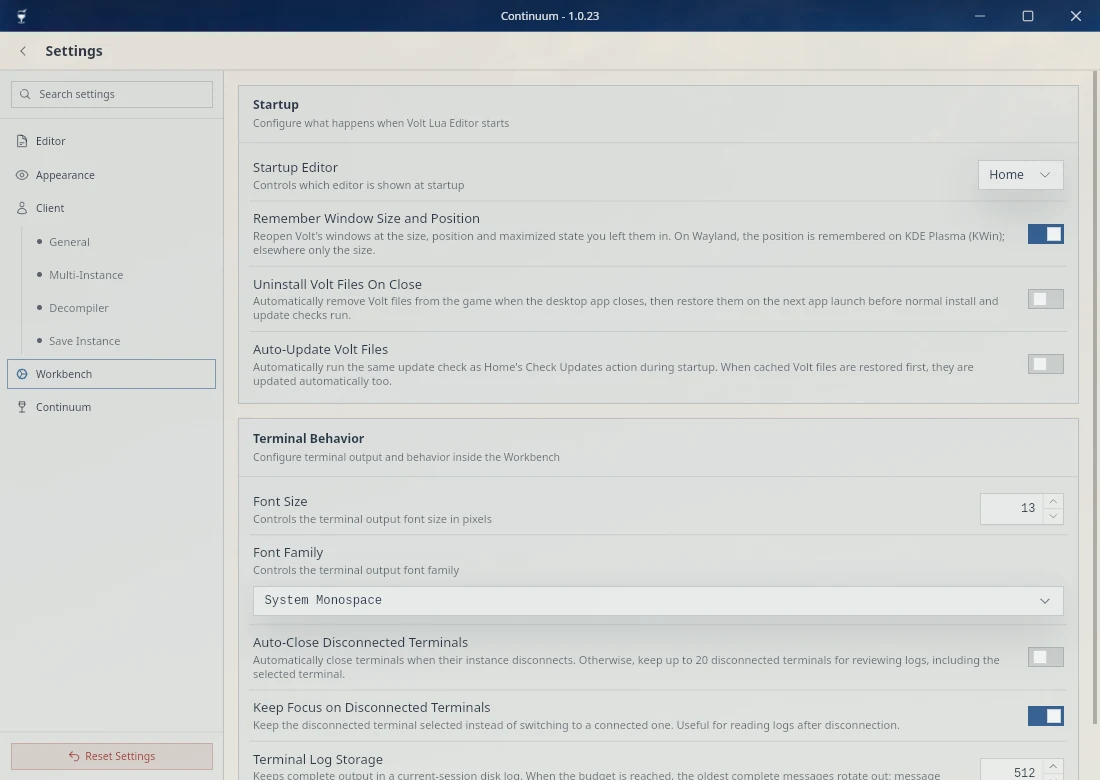
Startup
| Setting | What it does | Default |
|---|---|---|
| Startup Editor | What opens when Volt starts: Home, a New Tab, or None | Home |
| Remember Window Size and Position | Reopens Volt's windows as you left them: size, position and whether maximized | On |
| Uninstall Volt Files On Close | Removes the Volt files from Roblox when Volt closes and puts them back when it starts. Not available on Linux yet | Off |
| Auto-Update Volt Files | Runs Home's Check for Updates for the Volt files every time Volt starts | Off |
On Wayland, a window's position is only remembered on KDE Plasma; other Wayland desktops do not let programs place their own windows, so there Volt remembers the size alone.
Terminal Behavior
| Setting | What it does | Default |
|---|---|---|
| Font Size | The terminals' text size, 8 to 40 | 13 |
| Font Family | The terminals' font | System Monospace |
| Auto-Close Disconnected Terminals | Closes a client's terminal when it disconnects. Off, up to 20 disconnected terminals stay for reading | Off |
| Keep Focus on Disconnected Terminals | Stays on a terminal whose client disconnected instead of switching to a connected one | On |
| Terminal Log Storage | How much output the current session keeps on disk, 16 to 2048 MiB. When it is full, the oldest messages go first; a message is never cut short | 512 MiB |
Keyboard Shortcuts
Every command in the command palette and its shortcut, with a search box. Click a shortcut and press the keys you want; Esc cancels. Clear removes a shortcut and Reset puts the default back. Two commands with the same keys are marked Conflict, and only one of them runs.
The shortcuts work in every Volt window, the detached Terminals window too. In a shell, plain Ctrl+letter keys stay with the shell. The defaults are listed in Keyboard shortcuts.